
Roles and access
Decide who gets in, and what they can do once they’re there. Keep an assessment to yourself, open it to the people you invite or to anyone with the link, and let teammates edit the design or follow the results with you.
One setting decides who gets in
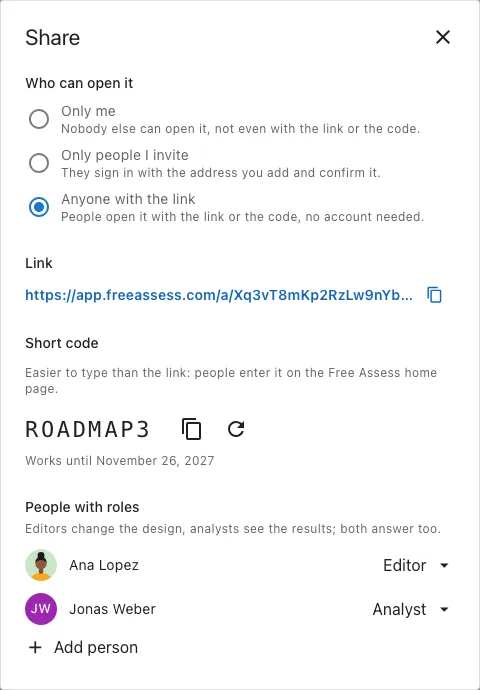
Open Share and pick who can open the assessment. The link and the short code stay the same whichever you choose; the setting decides whom they work for.
- Only me. Where every new assessment starts. Nobody else can open it, not even with the link or the code.
- Only people I invite. A closed group: the link opens for the email addresses you list.
- Anyone with the link. The quick way: people join with the link or the short code, no account needed.
You can change it at any time. If people have answered and you narrow it down, the dialog tells you how many of them can no longer open the assessment or change their answers.
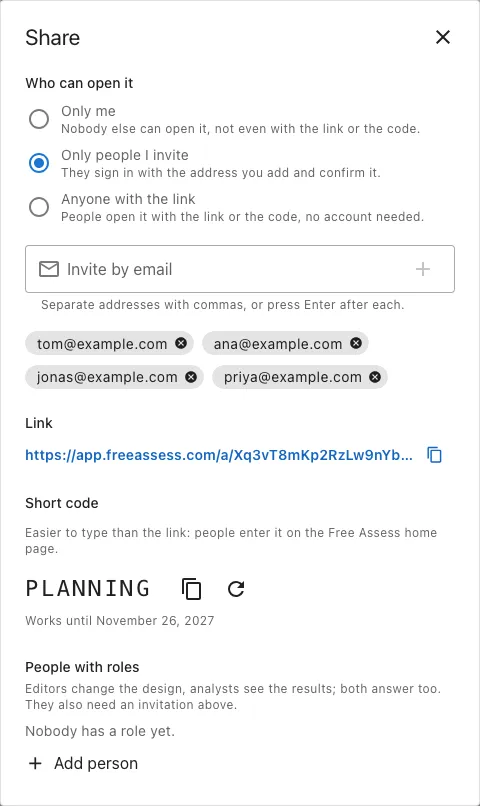
A closed group, by email address
Choose Only people I invite and add the addresses: type them or paste a whole list, separated by commas, up to 100. Remove an address and the assessment closes for that person again.
Invited people use the same link or short code as everyone else, and sign in with an account for the invited address. An account with a password confirms its address once, with a link sent when the account is created; a Google account needs no confirmation.
- You send the link. FreeAssess doesn’t email the people you add. Share the link or the code the way you always do, in chat, by email or on a slide.
- Clear when it doesn’t fit. Someone signed in with another address sees which address they’re using, so they know which one to ask you to invite.
- No anonymous answers. A visitor without an account is asked to sign in first, so you know who every answer comes from.
Four roles, from answering to running it
Most people only need to answer, and that’s what everyone can do by default. A role adds to it: seeing the results, or changing the design. Roles belong to one assessment, so the same person can be an editor here and a participant there.
- Owner Whoever created the assessment. Does everything, and is the only one who changes access, the short code and other people’s roles.
- Editor Designs with you: items, metrics, layout and settings. Also answers and sees the results.
- Analyst Answers and sees the results: everyone’s answers, sorting, filtering and exports.
- Participant Everyone else who can open the assessment. Answers, and sees only their own answers.
Pick a person, pick a role
Roles go to people who have already answered, so ask your teammate to open the assessment and answer something first. Then there are two places to do it:
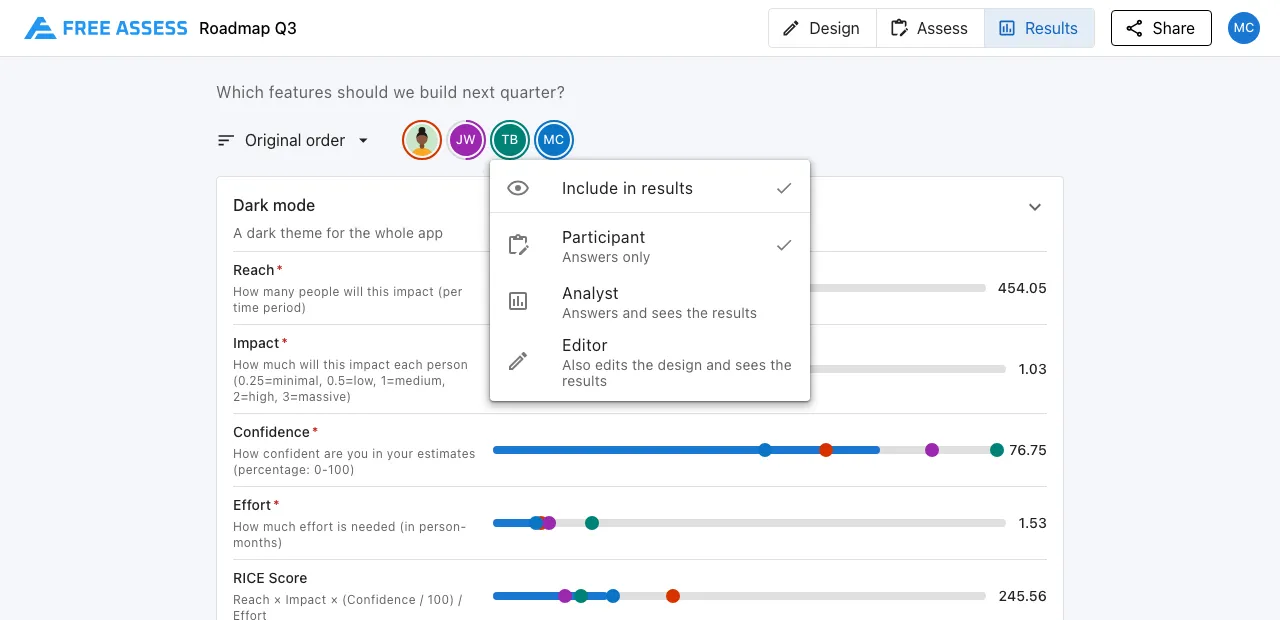
- In Share: Add person lists everyone who has answered, with how far they’ve got. Pick someone and they become an analyst; the menu next to their name changes that to editor, or removes the role.
- In Results: click a contributor and choose Participant, Analyst or Editor.
- It applies at once. The Results or Design view appears for them without a reload, and disappears again when you take the role away.
Access first, roles on top
A role never opens a door by itself. It only adds to what someone who can already get in is able to do, which keeps the rules easy to reason about.
- Private means private. While an assessment is set to Only me, roles are paused. Share it again and they’re back.
- Invite-only covers everyone. An editor or analyst needs an invitation like any other person.
- Participants don’t see results. Not the combined ones and not other people’s answers, unless you make them an analyst or editor.
- Editing together. When another editor changes the design, your page reloads with their version and tells you. Take turns on the same item: the last change saved is the one that stays.