
Bulk import
A long backlog shouldn’t mean half an hour of clicking “Add item”. Import dozens or hundreds of items in seconds and get straight to scoring.
Paste straight from your spreadsheet
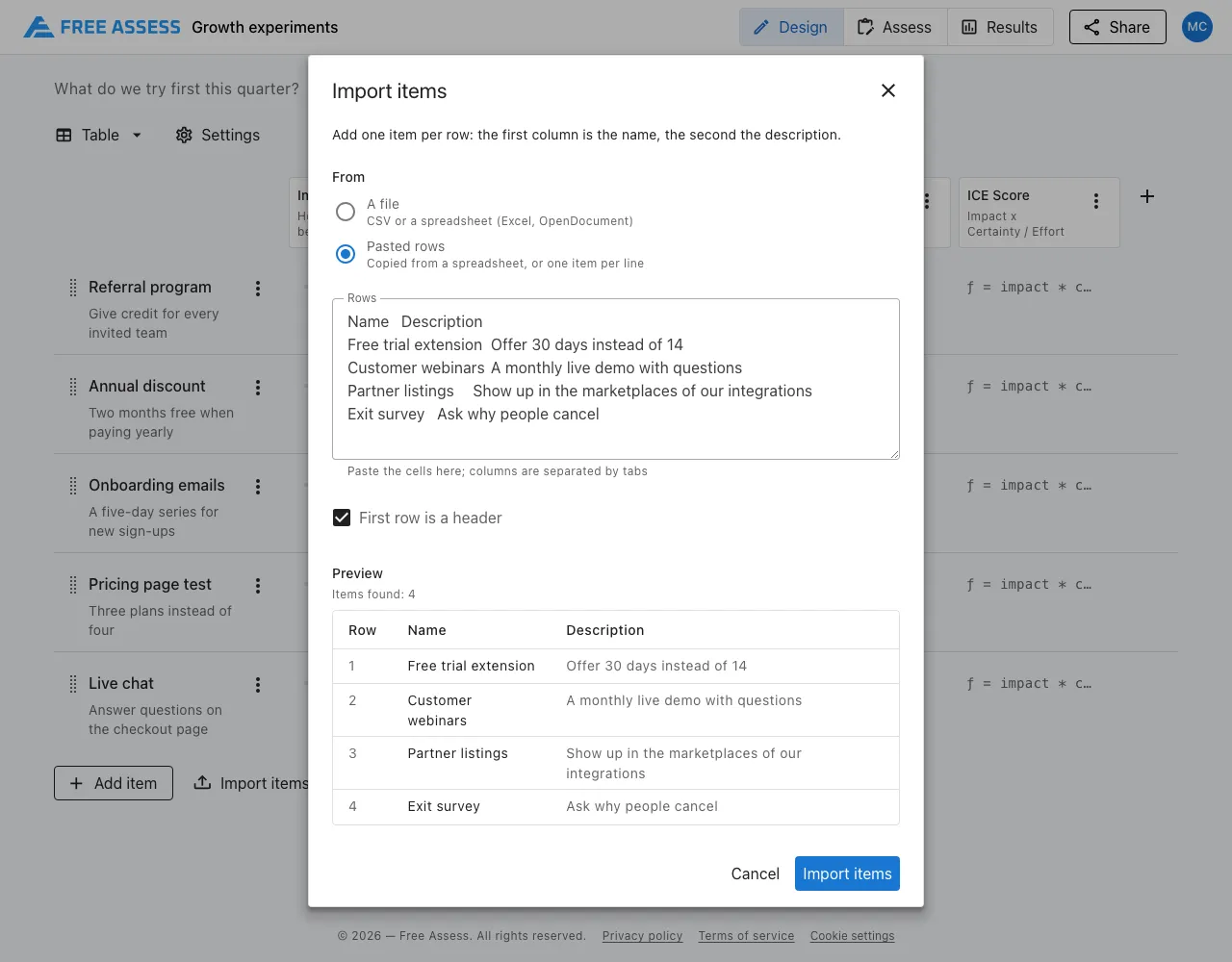
Select your rows in Excel, Google Sheets, LibreOffice Calc or any other spreadsheet, copy them, and paste them into FreeAssess. No export, no file conversion.
FreeAssess reads tab-separated values, which is what spreadsheets put on the clipboard. The first column is the item name, the second the description. Plain text works too: one item per line.
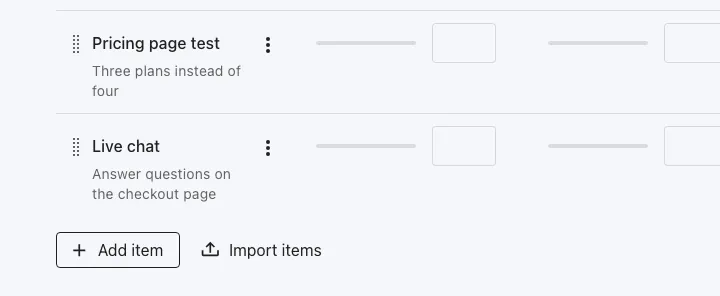
You’ll find Import items in the Design view, below your items and next to “Add item”, in every layout.
Any tool that copies cells
If it has rows and columns, you can paste from it. A list you scored in one of the free calculators needs no copying at all: its start link carries the names into a new assessment, and the app shows them and asks before it creates anything.
- Microsoft Excel Select the cells, press Ctrl+C (or Cmd+C) and paste.
- Google Sheets The same workflow, in any browser.
- LibreOffice / OpenOffice Calc Fully compatible clipboard format.
- Apple Numbers Copy cells and paste as usual.
- Anything else Any tool that copies cells as tab-separated text.
Or upload a file, and review before you commit
Upload a CSV, TSV or text file, or a spreadsheet: Excel (.xlsx, .xls) or OpenDocument (.ods), up to 5 MB. The same rules apply. For spreadsheets the first sheet is used; for CSV the separator (comma, semicolon or tab) is detected automatically. Handy for exports from Jira, Trello, Notion or any tracker with CSV export.
As soon as you paste or choose a file, a live preview shows the items found, with names, descriptions and a count, and follows every change you make. An assessment holds up to 500 items; rows that won’t fit are marked as skipped.
A First row is a header checkbox, on by default, skips column labels like Name and Description. Turn it off if your data starts on the first row.
How to import items
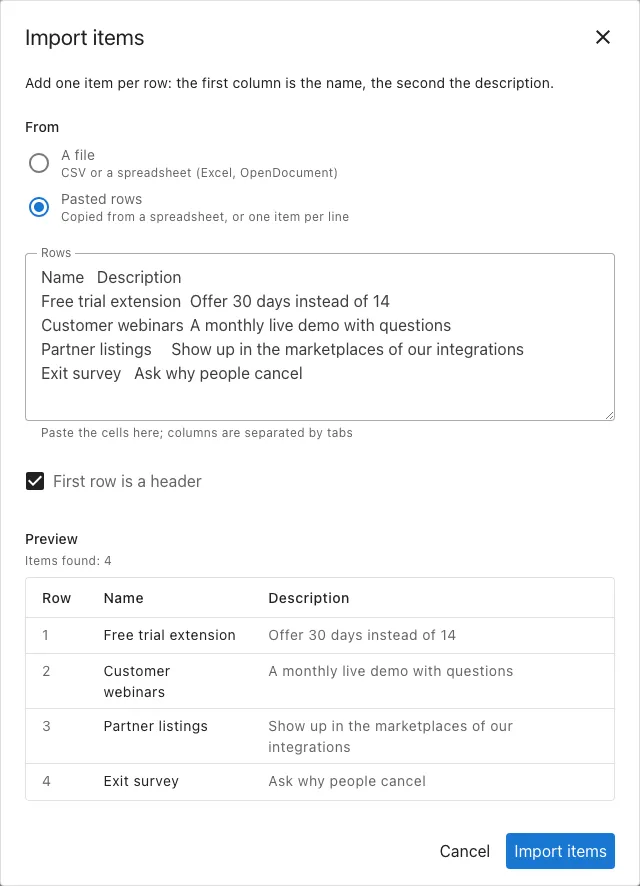
- Open Import items In the Design view, click Import items below your items and choose Pasted rows (or A file).
- Copy and paste Copy the rows in your spreadsheet (Ctrl+C / Cmd+C), click the Rows field and paste (Ctrl+V / Cmd+V).
- Check and import Check the preview, then click Import items. Your items are ready to be scored.